Help & Support
Developer Guide
Copyright © 2024 - 2026 Philippine Ports Authority. All rights are reserved.
System Version: 1.0.0-beta.11122025.1630
May change with prior notice.
| Date | Change | Last Update |
| 26-Mar-2025 |
| 14-Nov-2025 |
| 26-Mar-2025 |
| 14-Nov-2025 |
| 26-Mar-2025 |
| 14-Nov-2025 |
Find below information for authentication and authorization for OPCE Version 2.0.
The set of WebAPI endpoints for OPCE Version 2.0, served by PPA OPCE Server will accept authenticated JSON (JavaScript Object Notation) only, via API Key method.
The methods defined in each endpoint return varrying data objects in the format of JSON as a standard REST transport, together with standard W3C HTTP Responses with the standard response codes. E.g. 200, 201, 401, 501, etc.
The requests may originate from, regardless of the platform (mobile, servers, etc.), as long as the request is in JSON format using the HTTPS protocol.
All the requests shoud use the API Key method.
The subscriber who will consume the Web API services of the OPCE Version 2 should register a WebAPI account to Philippine Ports Authority.
NOTE: Existing frontend users and Web API Consumers of OPCE Version 1.0 are already migrated to OPCE Version 2.0. However, they need to reset their passwords when logging in, in PPA Account Center, via https://stage-account.ppa.com.ph
New subscribers will start by getting a user account based on PPA's single-sign-on mechanism. PPA Support team will provide the initial recording of this account via a form filled-out by the subscriber. The account or user name is email-based, so a company service email is preferable instead of a personal email. The registration info will be emailed to the user once the Account Administrator has processed the registration.
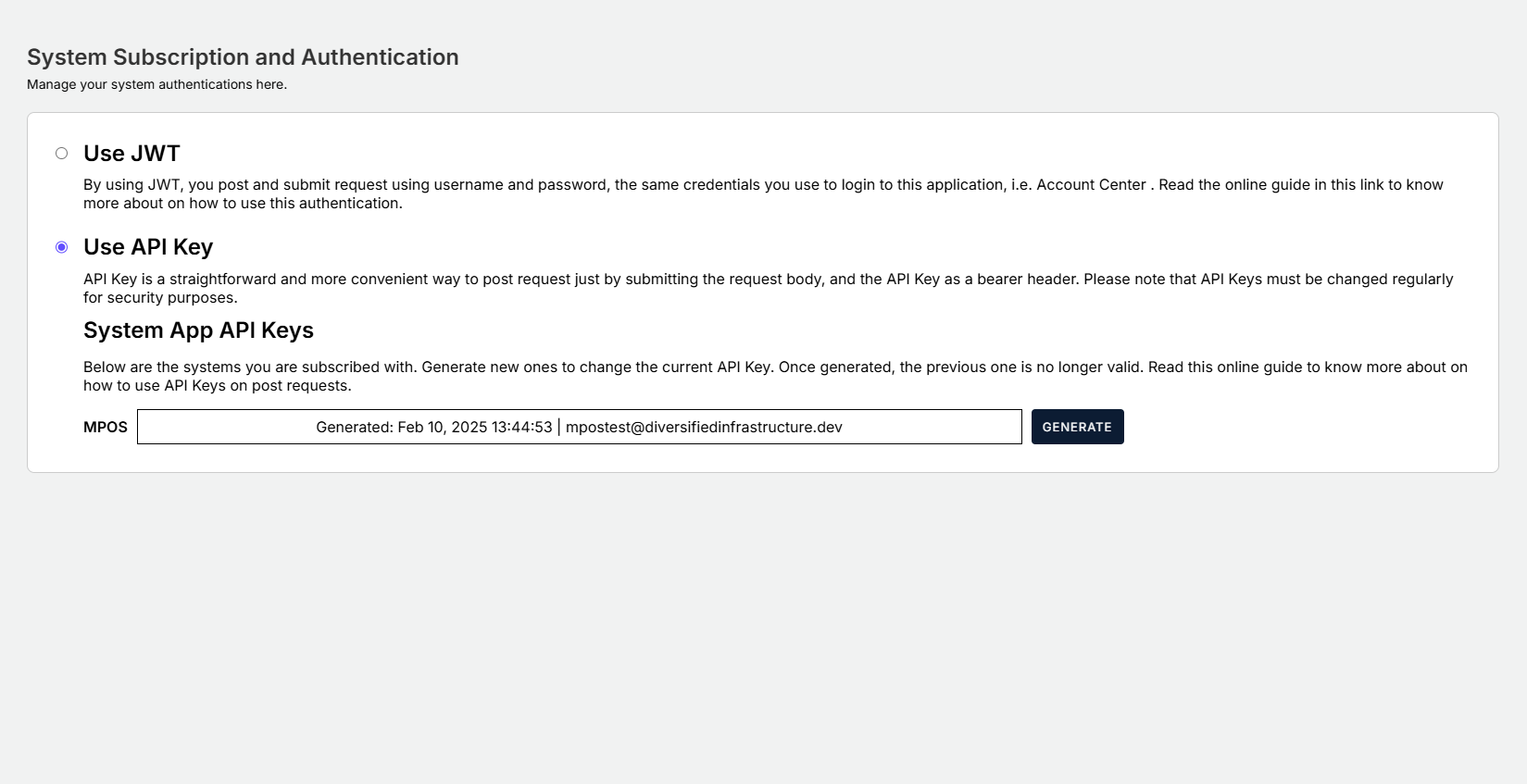
The current users (customers, api consumers) of OPCE V1 should login to the Account Center server using the email provided at https://stage-account.ppa.com.ph to change the credentials, and choose whether to authenticate transaction posting via JWT or API Key. In this case as an API Subscriber, in which a system talks to another system, please choose API Key.We will no longer provide support with the use of JWT Key as it targets the frontend users, not system-to-system. If in anycase you need to use JWT, it is still supported by OPCE Version 2.0. However as mentioned, we no longer support guidance for this method.
There are two ways of authenticating for sending transaction requests. PPA's Account Center and SSO systems cater these two methods.
API Key— This type of authorization is best used for system-to-system authentication. e.g. ACTS to PPA OPCE.
This method is used to provide a simple and simplified authentication process. With this authentication, large volume of requests are processed continuously without having to get or acquire new tokens.
This type of token never expires, unless changed by the subscriber/user in the Account Center.
JSON Web Tokens (JWT)— At the time of this writing, JSON Web tokens or JWT is the defacto-standard when it comes to securing online transactions via the world wide web, when it comes to user-based systems. Preferable when a user is interacting with the system e.g. When a customer is interacting with OPCE frontend for filing commodity exemption. JWT has expiry and when a user re-logs in, a new JWT is issued.

As a user and subscriber of the system, the key persistent and safekeeping are their responsibilities. It can be kept in a configuration file, database, etc., encrypted by your own utility program, and decrypt whenever it is up for usage.
In cases where there are errors during posting, below HTTP codes will be returned from the request, together with REST JSON record containing the details.
| Error Name | Status Code | HTTP Label | Description |
| UnauthorizedAccess | 401 | Unauthorized | The supplied API key does not have the correct permissions to access the API being called. Contact the support team to determine the permissions and accessible content for your key. |
| InvalidApiKey | 401 | Unauthorized | The supplied API key is invalid or already expired, revoked or replaced, and cannot be used for any API request calls. Log in to Account Center to generate another valid key. |
The Account Center (aka Gatekeeper) portal is used to authenticate and authorize the subscribers for different applications. For OPCE, this portal is used to generate the API Key needed to post into PPA's OPCE Version 2, EOR (coming soon).
Prerequisite: The subscriber should already have their valid credentials. Request to the technical support team if you have yet to get your credentials, but you will have to provide your email.


Once you generate the key, make sure to save it securely. The key will be censored afterwards. In case of lost or forgotten key, you can always generate another one. Once generated, the previous key will become invalid.